Runtime Behavior
Admin path: Web Settings -> Advanced -> Runtime Behavior
This page mainly controls public-page runtime display, activity updates, status cards, Steam, cache, and rule tools.
In short: most settings here do not change the profile content itself. They change how that content is displayed, filtered, updated, and exposed on the public frontend.
Frontend interaction and activity display
Enable global mouse tilt
When enabled, supported cards on the public page tilt slightly with mouse movement.
Enable this if you want the public page to feel more dynamic. Disable it if you prefer fewer motion effects.
Enable mobile gyroscope tilt
This option depends on "Enable global mouse tilt".
When enabled, supported frontend cards can react to device tilt on phones with motion sensors.
Some mobile browsers require the user to grant sensor permissions. Behavior can vary across systems.
Enable online pulse effect
When enabled, the online accent color on the homepage profile card plays a subtle pulse animation while online.
When disabled, online status is still shown, but the breathing / pulse animation is removed.
Online accent color
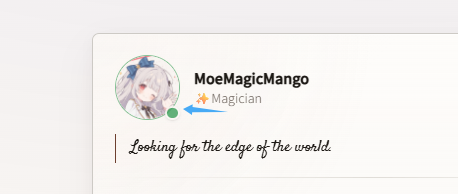
Sets the accent color for online status.
This usually affects the online dot, online status prompt, and parts of the status card.
If left empty, or if you choose the theme default, the current theme's default online color is used.
Hide media information in activity cards
When enabled, public activity cards no longer show media information such as song title or artist.
Use this if you do not want to publicly show what you are listening to.
When disabled, reported media information is shown normally.
Show media source in hover cards
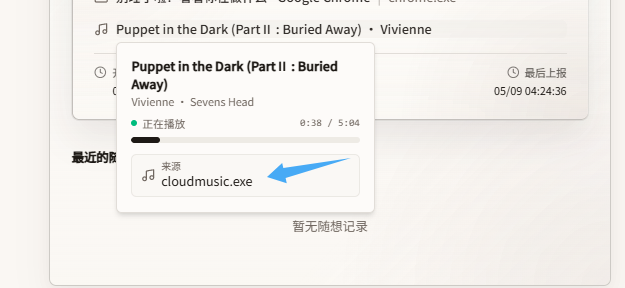
When enabled, hovering over music information shows the source in the detail card, such as Spotify, Apple Music, or system media.
When disabled, media content can still be shown, but the source is hidden.
Show media cover image in hover cards
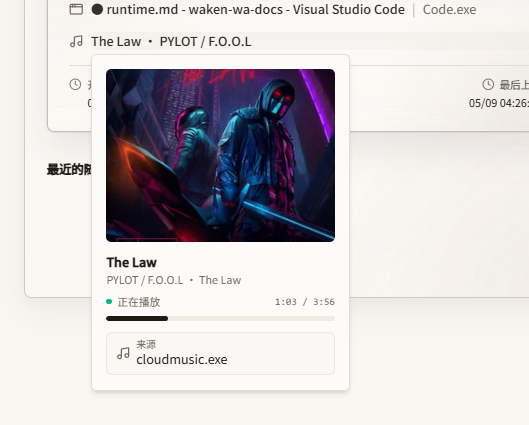
When enabled, hovering over media information shows the cover image.
This makes music display more complete, but also stores and reads more image data.
If you deploy on a Serverless platform, or database space is limited, do not set this too aggressively.
Remember that the client also needs to report media information, otherwise there will be nothing to display.
Report playback app icon
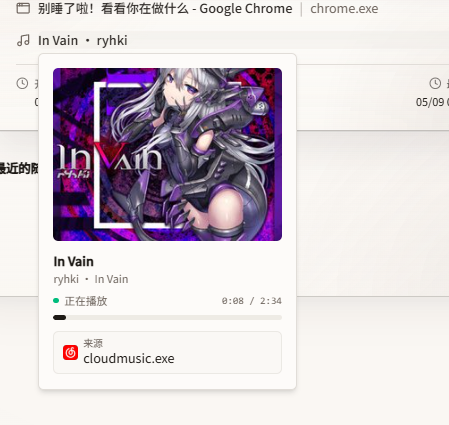
When enabled, icons for playback applications reported by the client are saved and shown before the music line when available.
For example, if the system detects that current media comes from a specific player, the public page can show that player icon.
When disabled, these app icons are not used.
Show NCM song link
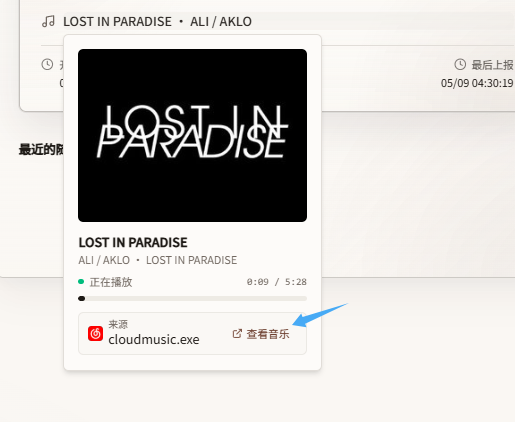
When enabled, if the activity report contains genre-like information such as NCM-{id}, the hover card displays a link to music.163.com.
This mainly serves NetEase Cloud Music reporting scenarios. It is based on BetterNCM's inflink-rs, which is a great project.
Maximum cover images per device
Controls how many media cover images each device keeps.
0: no limit- Any normal number: old images are cleaned up after the limit is exceeded
If media covers are enabled, set a reasonable upper limit.
Too many cover images will increase database size and make backup or migration heavier.
Hide inspiration log
When enabled, the homepage no longer shows the inspiration section.
This only affects homepage display. It does not delete inspiration entries, and it does not affect the inspiration list or admin management.
Ignore LockApp / loginwindow / sleep-like activity
When enabled, the system filters reports such as Windows LockApp, macOS loginwindow, and sleep / lock-screen activities.
This is useful if you do not want lock screen, sleep, or standby states to appear in the public activity stream.
If you explicitly want to show "locked" or "sleeping", do not enable this.
Force display timezone
When enabled, timetable and activity time are displayed using the selected timezone below.
When disabled, time is usually shown in the visitor's local timezone.
If visitors come from different regions, forcing a timezone avoids the same activity appearing as different times for different people.
Display timezone
This setting takes effect when "Force display timezone" is enabled.
For example, after choosing China Standard Time, absolute times and schedule date calculations on the public page use GMT+8.
External status card usage
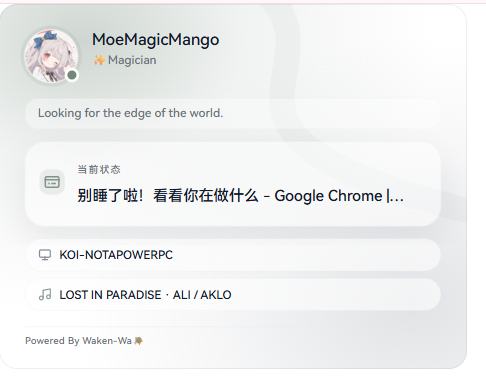
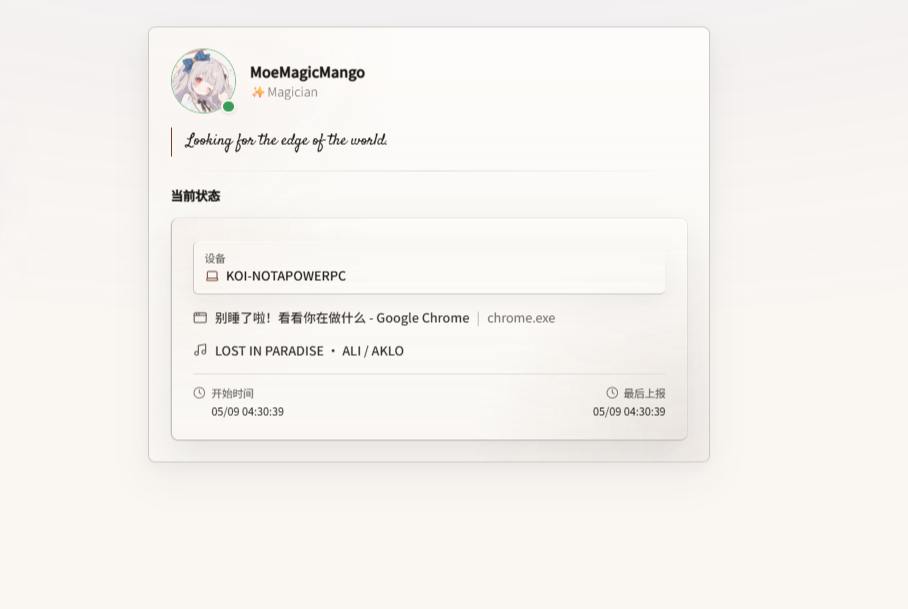
The status card generates an SVG URL that can be placed inside an <img> tag. It is usually used in README files, personal homepages, signatures, or other places that support linked images.
Enable status card endpoint
After enabling and saving this option, external pages can read the status card through /api/status-card.
When disabled, the admin panel can still preview the configuration, but external access will not return a public card normally.
External access is still affected by page lock.
If page lock is enabled, public platforms may fail to load the status card.
Show personal header
When enabled, the status card can show avatar, name, description, and signature.
When disabled, the card focuses more on current status and hides the personal profile area.
Avatar / name / description
These three options only matter when "Show personal header" is enabled.
They control whether the status card shows:
- Avatar
- Homepage name
- Homepage description
Show signature
When enabled, the status card shows the homepage note userNote from basic settings.
Hitokoto is not fetched here.
Even if the frontend note uses Hitokoto, the status card signature still uses the manually configured note.
Prioritize game status
When enabled, if Steam gameplay is detected, the game name is placed in the main status position first.
When device filtering is set to "auto-select current status", the system also prefers the device that is currently gaming.
Override sleep / lock-screen status during class
When enabled, if the current time is within a scheduled class and the current activity is sleep, standby, or lock screen, the status card displays "in class".
This is useful if you want the card to prioritize class status during scheduled class time instead of showing device lock state.
Visual style
Controls the overall status card style.
Current styles:
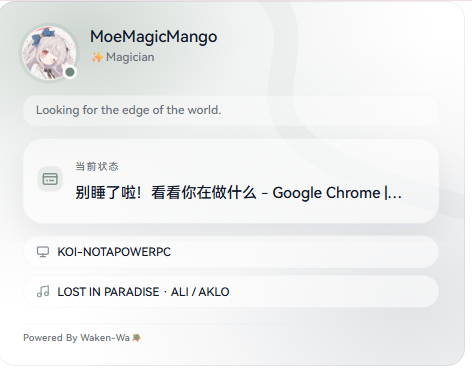
- Aurora glow card
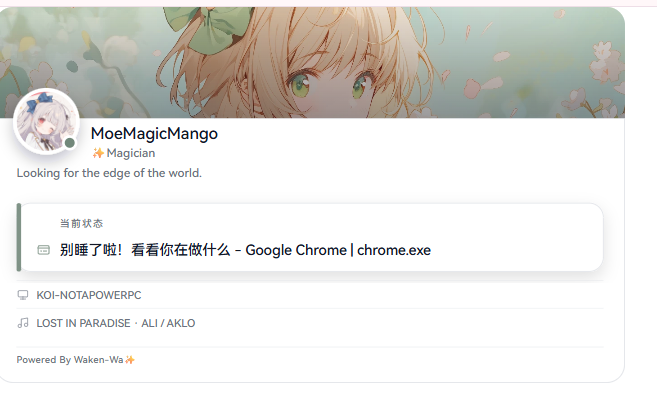
- Cover image card
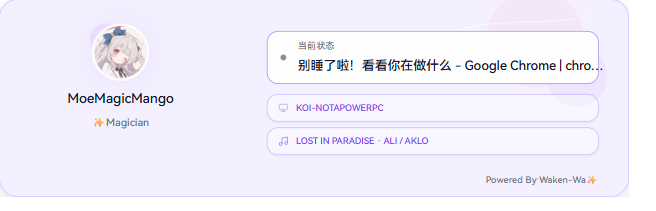
- Signature card
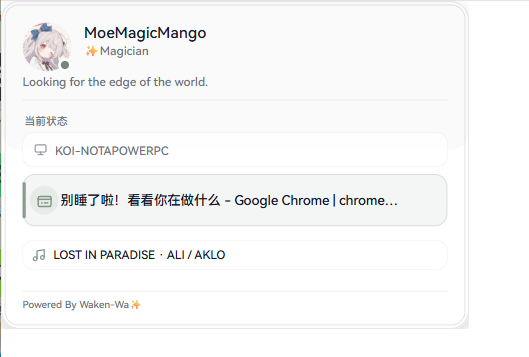
- Classic card
After switching styles, the status card layout, background usage, and default dimensions may change.
Tag
Only used by the Signature card.
Displays a short tag on the status card, such as #Magician.
It only affects card display and does not participate in activity detection.
Background image hash
Only used by the Signature card.
After uploading a background image, this field is filled automatically. You can also paste an image-src hash manually.
The copied URL only contains the hash and does not directly expose the original image URL.
Cover image hash
Only used by the Cover image card.
After uploading, the image is used as the top cover of the status card.
Like the background image, the external URL only contains the hash.
Device filter
Controls which device status this status card displays.
- Auto-select current status: the system automatically chooses the most suitable current status
- By device ID: always show a specific device
- By device identity badge: filter through the device identity badge
When filtering by device identity badge, the identity badge appears in the copied URL.
For more public scenarios, prefer device ID.
Width / height / radius
Controls the dimensions and border radius of the generated SVG status card.
If you want to place it in a README, preview it first to confirm the size.
Too little height squeezes content, while too little width may truncate text.
Background / text / muted text / accent / border
These options control status card colors.
- Background: card background color
- Signature card background: dedicated background color for the Signature style
- Text: primary text color
- Muted text: secondary text color for time, descriptions, and similar content
- Accent: online status and highlighted elements
- Border: card border color
Changes are reflected in the status card preview and copied URL.
Activity updates and cache
Frontend activity update mode
Controls how the public page receives activity updates.
SSE push
The server pushes activity changes proactively, which gives better realtime behavior.
This is generally recommended for normal server / Docker deployments.
If your reverse proxy or deployment platform does not handle long connections well, the page may only update after refresh, or connections may drop.
HTTP polling
The frontend requests activity updates at a fixed interval.
Realtime behavior is weaker than SSE, but it is friendlier to Serverless platforms.
If you deploy on Vercel or similar platforms, consider using this first.
Use Redis as secondary activity cache
When enabled, public activity snapshots are written to Redis.
This is useful for multi-instance deployments, because different instances can read relatively consistent activity state.
In some Serverless environments, this toggle may be locked.
Redis cache TTL (seconds)
Controls the expiration time of Redis activity cache.
- Shorter value: refreshes more actively, but cache churn and request pressure increase
- Longer value: more stable and saves requests, but status may expire less quickly
The default is usually enough. Focus on this only when status is inconsistent across multiple instances or Serverless deployments.
Steam integration
Enable Steam integration
When enabled, supported online devices can show the current Steam game on the status card.
This feature is usually considered together with "Show Steam gameplay on the status card" and "Prioritize game status".
Steam ID
Enter a 64-bit Steam ID for querying current Steam status.
If it is wrong, the usual symptom is that current gameplay cannot be detected.
Steam Web API Key
Used to request the Steam Web API.
Steam API keys are sensitive credentials. Do not publish them in docs, screenshots, or repositories.
Reporting and history detection
History window (minutes)
Controls how many recent minutes of activity appear in the homepage history list.
A larger value keeps more public history. A smaller value keeps the history list cleaner.
The current range is generally 10 minutes to 1440 minutes.
Process expiration interval (seconds)
Controls how long a realtime process can go without another report before it is treated as expired.
By default, a process expires after 500 seconds without another report.
If the value is too short, occasional missed reports from the client may make the status disappear frequently.
If it is too long, the frontend may keep showing stale status after a device stops reporting.
Auto-approve new devices
When enabled, newly reported devices skip manual approval and become usable directly.
This is suitable for fully personal deployments in trusted network environments.
If your reporting endpoint is exposed to the public internet, enable this carefully.
When disabled, new devices must be approved manually in device management, which is safer.
Limit inspiration submission by device
When enabled, only requests carrying an allowed X-Device-Key that matches the selected device's generatedHashKey can submit inspiration content.
This is useful if you expose the inspiration submission endpoint but only want your own devices or scripts to write content.
When disabled, this device identity restriction is not applied.
Rule tools
Rule tools mainly affect how activity names, window titles, and media sources are displayed on the public page.
Show process name when a rule matches
When enabled, a matched app display rule is shown as "text | process name".
When disabled, only the rule text is shown, and the original title remains hidden.
App matching display rules
Used to convert reported process names / app names and window titles into text that is safer and nicer for public display.
The general logic is:
- Match app / process name first
- Then refine with title sub-rules
- Rules are evaluated from top to bottom, and the first match wins
Example:
Code.exe -> Coding
Title contains .tsx -> Writing frontend
This prevents the frontend from showing the full raw window title, and shows your configured text instead.
Matching order
App rules have two levels:
- The top level matches app / process name with
processName - After an app is matched, title sub-rules match
processTitle - Title sub-rules are checked from top to bottom, and the first match provides display text
- If no title sub-rule matches, the app group's default text is used
processName uses case-insensitive contains matching.
For example, a rule written as code.exe also matches a reported process name of Code.exe.
Plain text mode
Plain text mode checks whether a window title contains a piece of text.
Example:
Title condition: app/page.tsx
Display text: Writing frontend page
If the window title is:
app/page.tsx - waken-wa - Visual Studio Code
The rule matches.
Plain text mode also ignores case.
Regex mode
Regex mode matches the window title with a regular expression.
The match target here is the window title processTitle, not the process name.
The regex is executed case-insensitively, equivalent to using the i flag.
If you copied syntax from another regex tool with a leading (?i), for example:
(?i)(refactor|rewrite|migrate)
It can also be used. The system accepts the leading (?i), and the effect is the same as:
(refactor|rewrite|migrate)
Because matching is already case-insensitive by default, you usually do not need to write (?i) manually.
For example, to match VS Code windows editing .tsx files:
App/process name: Code.exe
Title condition: \.tsx\b
Display text: Writing frontend
If the window title is:
runtime.tsx - waken-wa - Visual Studio Code
The display result is:
Writing frontend
In regex, . means any character.
If you want to match a literal dot, such as .tsx, write it as \.tsx.
Regex capture groups
After Regex mode matches, the display text can use captured content.
Available variables:
{process}: process name{title}: window title{match}: full regex match{match1}: first capture group{match2}: second capture group{match:name}: named capture group
Example:
Title condition: (.+?) - Visual Studio Code
Display text: Editing: {match1}
Window title:
runtime.md - Visual Studio Code
Display result:
Editing: runtime.md
You can also use a named capture:
Title condition: (?<file>.+?) - Visual Studio Code
Display text: Editing: {match:file}
The result is similar to {match1}, but easier to read.
If the app also has "show app name only" enabled, {title} will be empty.
In that case, title sub-rules may not behave as expected.
Common patterns
Match file types:
\.md\b
\.tsx\b
\.vue\b
Match title ending:
\.md$
Extract a browser page title:
(.+?) - Google Chrome
Extract the current VS Code file name:
(?<file>.+?) - Visual Studio Code
If a regex is invalid, saving will show an invalid Regex warning.
If you are not familiar with regex, use plain text mode first, then use Regex only when you need to extract title content.
Save reported app history
When enabled, the system saves apps that have been reported, which helps rule selection and export.
When disabled, no new history is added, but existing saved history remains.
Number of app titles to keep
Controls how many recent titles are saved per app and platform.
0: save app names only, not titles- Larger number: keep more title history for rule editing
If you care about window title privacy, reduce this value or set it to 0.
App display filter
Filters public status and history by app name.
- Blacklist mode: apps in the list are not displayed
- Whitelist mode: only apps in the list are displayed
If the whitelist is empty, the frontend will not show any activity records.
Show app name only
Apps matched here show only the app name, without window titles or other details.
This is useful for apps such as WeChat, browsers, and editors, where window titles may contain private information.
Media source rules (play_source)
Handles media information based on reported metadata.play_source.
Available actions:
- Block: hide media information when matched
- Override: display the configured source name when matched
For example, overriding system_media to Spotify makes the frontend source label more friendly.
Export used apps (JSON)
Exports recorded app history as JSON.
This is generally useful for backup, troubleshooting, or organizing the app history into rules.
Copy rules JSON
Copies the current rule configuration.
Use this to migrate rules to another environment, or to keep a backup before large rule changes.
Import rules JSON
Imports external rule JSON into the current draft.
After importing, save it before the rules are actually written.
If you are about to make large rule changes, copy the current rules JSON first.
Once there are many rules, rolling back from memory gets painful.