📱 Device Management
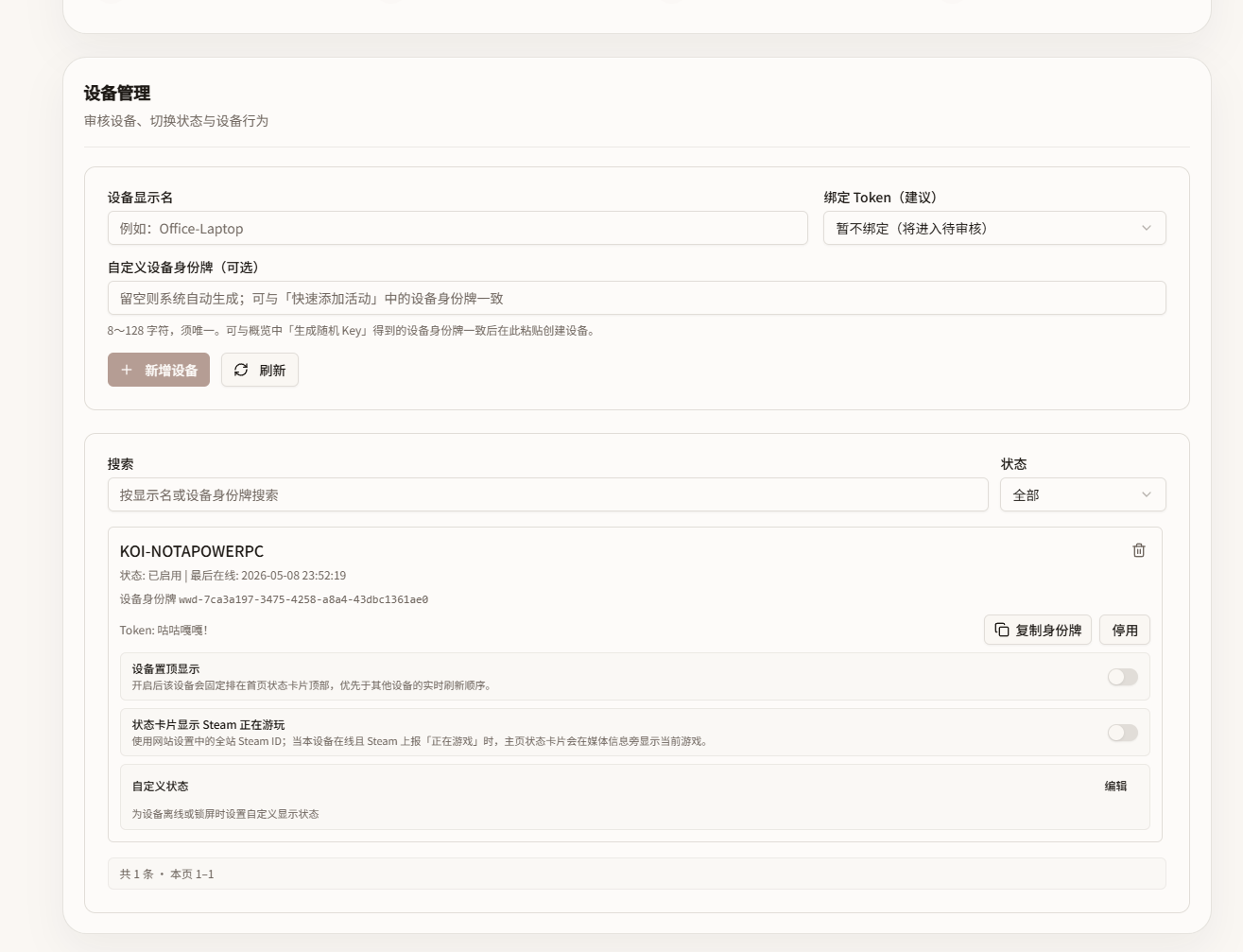
Quick device binding
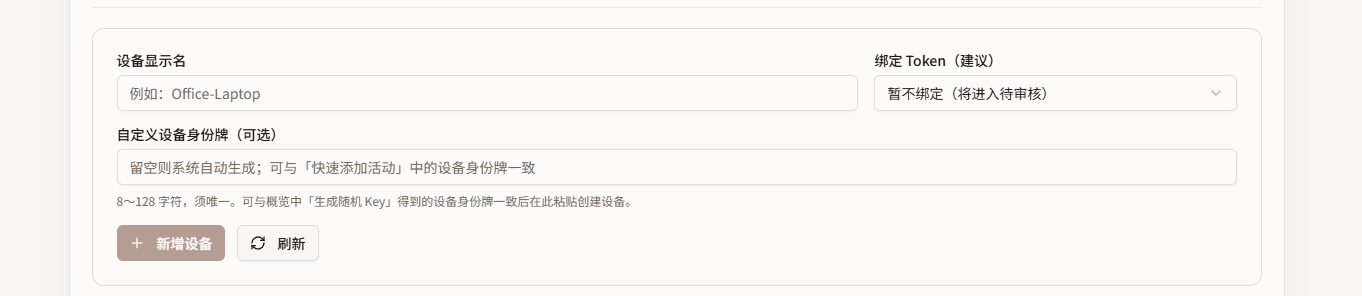
You usually will not need this.
Use case: if a client does not have the Waken-Wa client installed normally, but still needs to report and display status, you can pre-bind it here.
This is useful for AppleScript / Shortcuts setups that report Active activity.
See the reporting docs for more details.
Device list
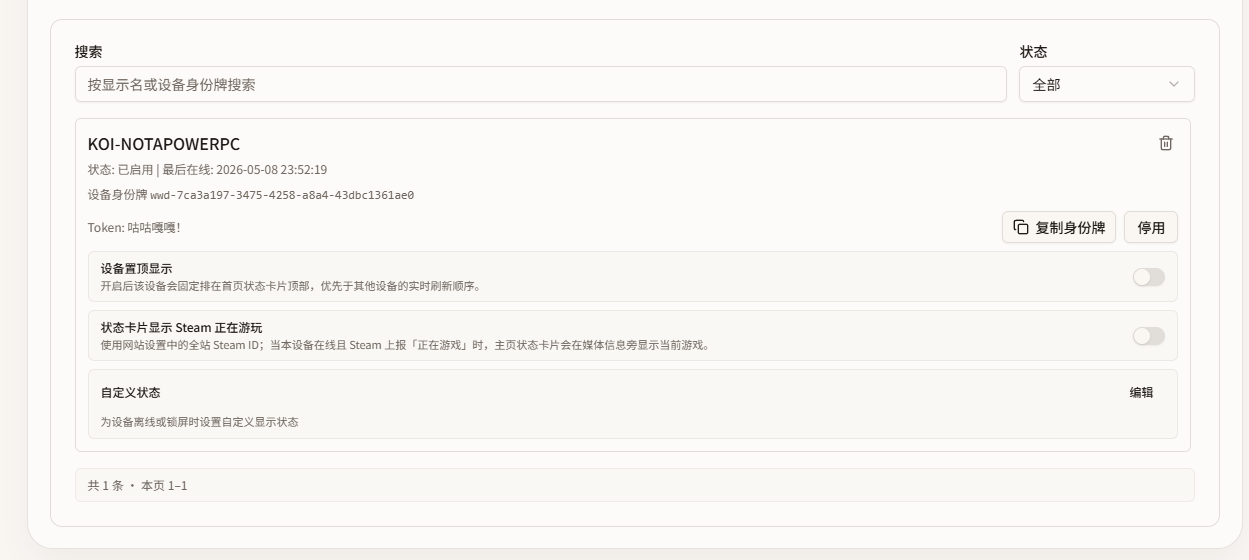
The search box on the left can filter by name or key, while the status filters on the right narrow down the current device state.
Pinning devices to the top
Waken-Wa sorts multiple devices by priority. If nothing is pinned, the device will stay at the top.
Show Steam gameplay on the status card
Steam integration must be configured in the admin panel first.
It looks like this:
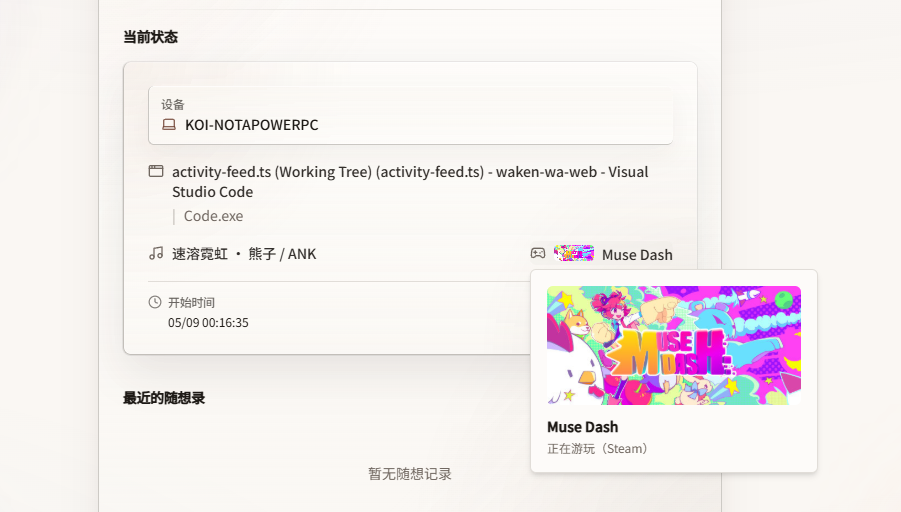
This only appears when the device is online and Steam gameplay display is enabled.
If there is no music info, this block shifts left and uses the music slot.
Custom status settings
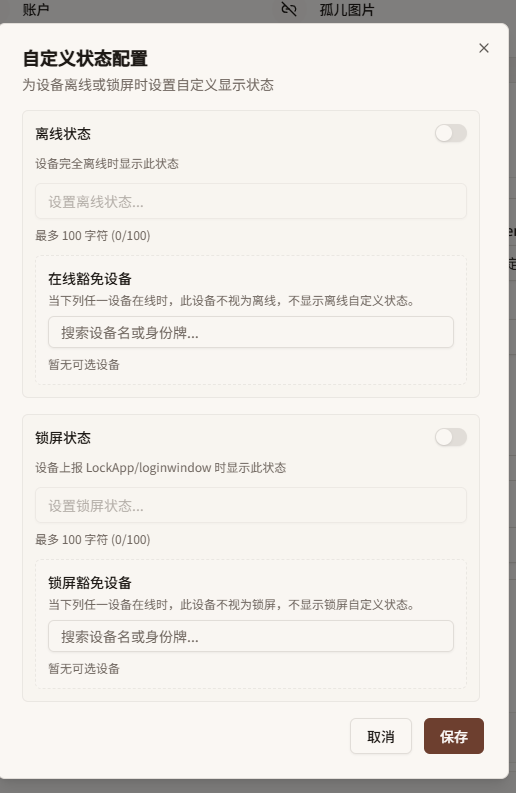
Offline / lock screen state
If a device is offline but you still want it to be shown, use this feature.
After startup, if the device does not report data in time and the feature is enabled, the configured state here will be used.
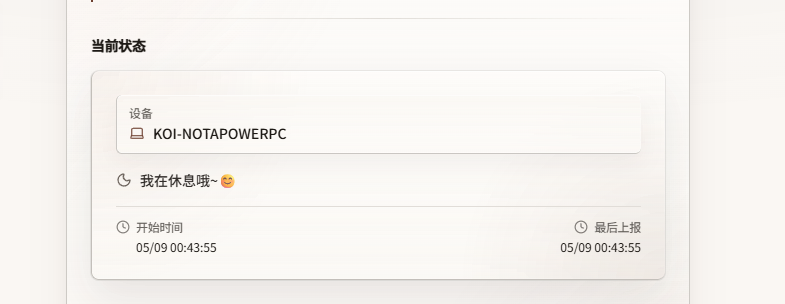
If it is a lock screen state, the icon changes to
Lock screen handling only covers two cases: Windows 11 lockAPP and macOS LockWindows.
Other cases are not handled. If your system does not work, please open an issue.